
There is nothing to download from an app store. The Labora Collective installs straight from the website, gets its own icon, keeps you signed in, and sends alerts to your phone when we post or go live.
Coming soon: Labora as an app you can download from the Android app store. Until then, the steps below put it on your phone today. One thing to know until the app arrives: Labora still runs from our website, so it is not yet protected against a government or serious attacker the way an app can be. Read what that means.
iPhone or iPad
- Open community.laboracollective.com in Safari. Other browsers on an iPhone cannot add it.
- Sign in with your email address and the code we send you.
- Tap the Share button, the square with an arrow pointing up.
- Scroll down and tap Add to Home Screen, then Add.
- Open Labora from the new icon, tap You, then Settings, and turn on Phone alerts.
Android
- Open community.laboracollective.com in Chrome.
- Sign in with your email address and the code we send you.
- Tap Install when it appears at the bottom of the screen. If it does not, open the browser menu (the three dots) and choose Install app or Add to Home screen.
- Open Labora from the new icon, tap You, then Settings, and turn on Phone alerts.
What it looks like.
-
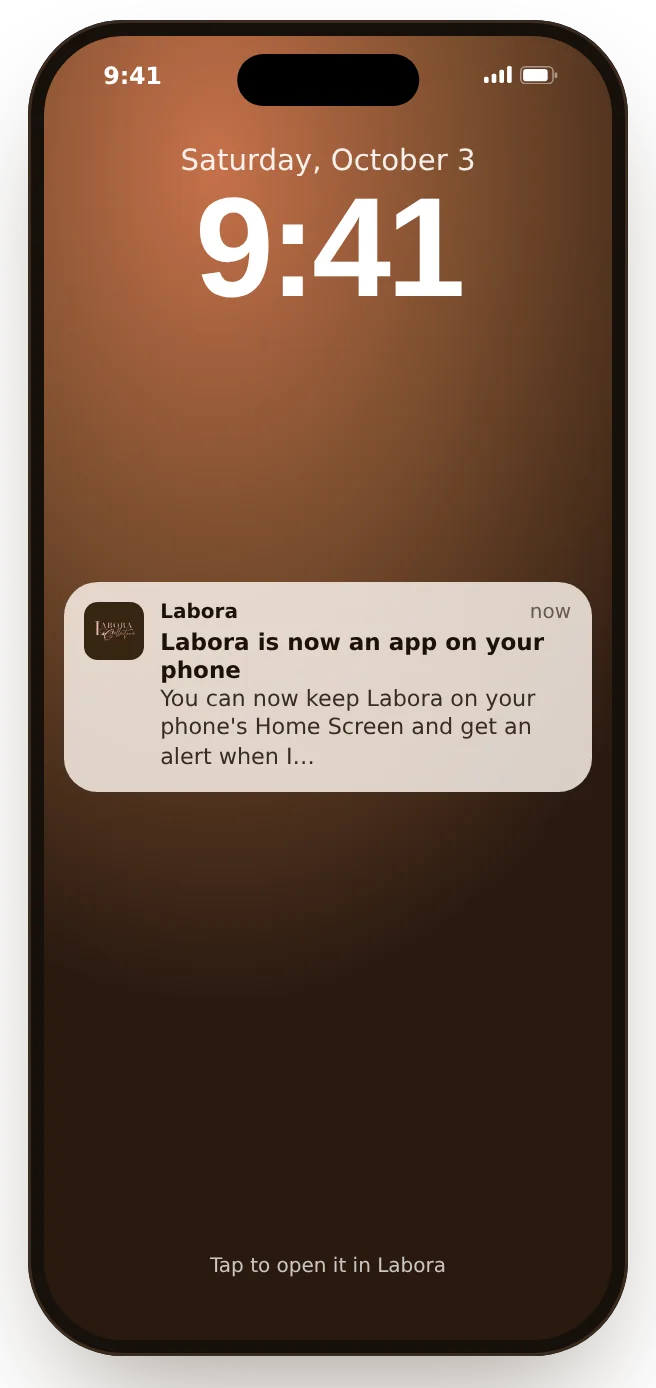
Alerts on your phone
When Dr. Connor sends the community a message, it arrives like any app’s.
-
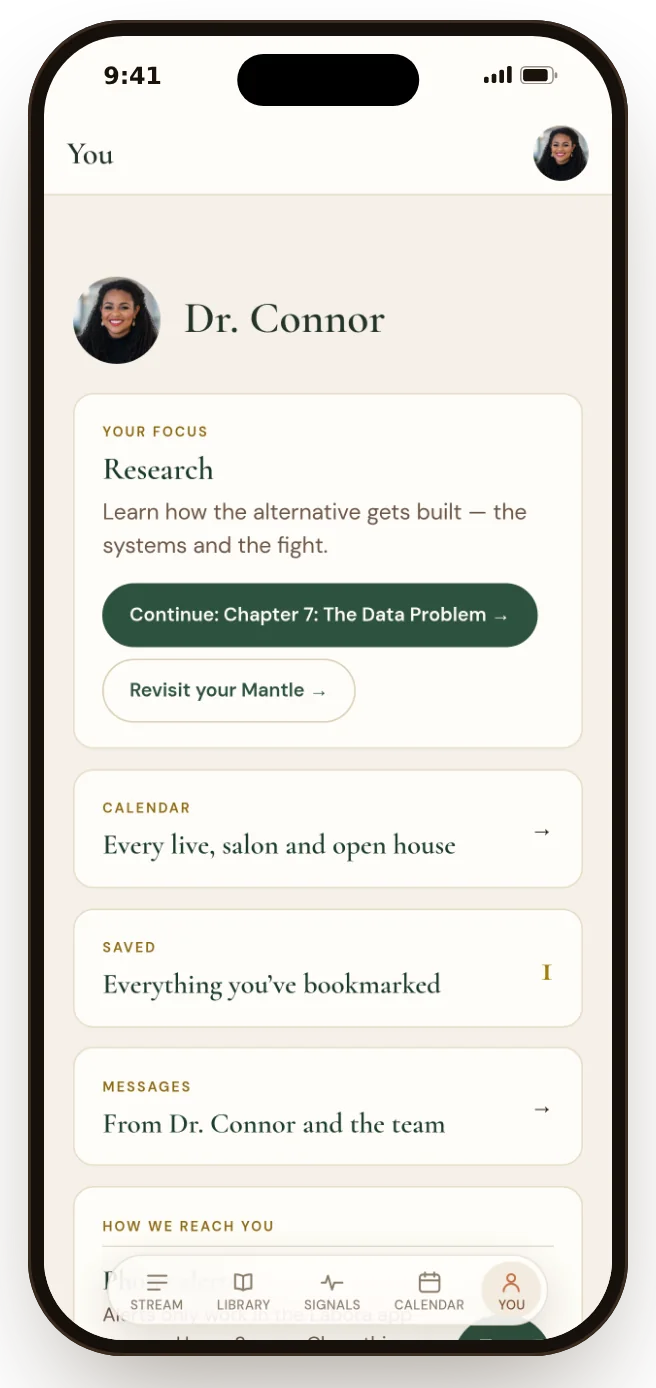
You
Your focus, what you’ve saved, and how we reach you.
Alerts only work from the icon on your Home Screen, not from a browser tab or a link inside an email app. Stuck? Write to laboracollective@diosara.com and we will walk you through it.